
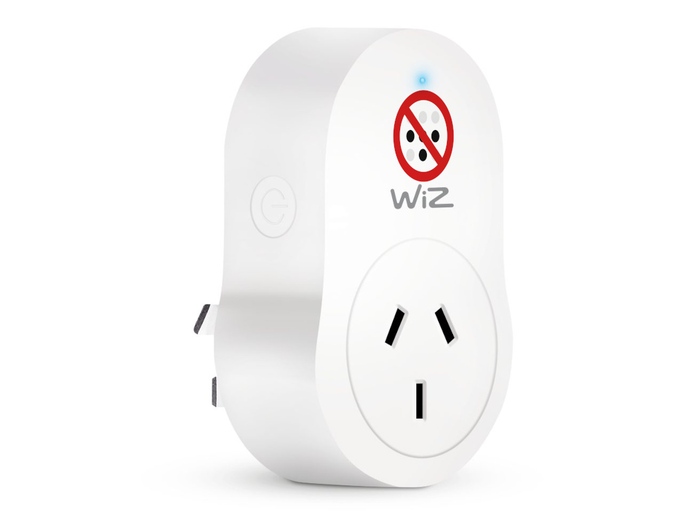
I picked up a Wiz Smart Plug and for the life of me I couldn’t get it to connect to the WiFi using the Wiz Connected app. I’d already connected the plug to the Portable Button, so Smart Pairing was out, I had to pair manually. No problem, I thinks. Yet the app would get stuck on the step Sending credentials… under the Connecting to the Cloud header. None of my Google-fu (Duck-Duck-Go-fu?) surfaced any working solutions, which I eventually realised was to turn off the Tailscale VPN I had active on my phone. D’oh!
Anyway, that was my solution, but I want to go into the whole Wiz thing in more detail here.
I went for the Wiz gear as I saw it had Matter support, which from my rudimentary understanding of smart home devices is that it’s about an open a standard as you can get, and should have good compatibility with Home Assistant.
It seems these devices can be a bit finnicky but a lot of the other preparations that need to be done are pretty well documented. This Reddit thread from user AnAmericanLibrarian goes into a good amount of detail of what needs to be done, but Reddit being Reddit, I’m going to share the content here for posterity:
Every “I can’t pair my bulb!!!” post I’ve seen in this sub could have been *probably solved by going through the manual pairing steps below. A couple weeks back someone returned ~10 “nonfunctioning” bulbs because they didn’t understand that Step 9 was needed.
The assumptions of these instructions are that you have functional 2.4 Ghz wifi available, you have one or more Wiz devices, and you’ve already installed the Wiz v.2 app and created your account. You do not need to have connected any Wiz device yet. The process involves whatever phone/tablet/laptop you’re using for control, your wifi network, and one individual wiz device.
These instructions use the manual pairing mode and assume you’re connecting a smart bulb. They do NOT use bluetooth pairing nor smart pairing.
Step 1: know your wifi 2.4Ghz network name and password, keep them handy if not memorized.
Step 2: ensure your wifi network is functioning normally.
Step 3: CHECK YOUR DEVICE NETWORK SETTINGS.
Step 3a: DISABLE ANY “AUTOCONNECT”/“AUTOMATICALLY CONNECT TO THIS NETWORK” setting you currently have configured for your device. You can turn this back on after you set up your device. What you don’t want to happen, is to have your device automatically connect ‘back’ to the wifi too early in the process, which will screw up pairing.
Step 3b: Connect your device to your 2.4 Ghz wifi if it’s not already connected.
Step 4: Turn on the Wiz app on your device, go to Add a device (the plus sign in top right corner), select appropriate device type and room.
Step 5: At first the “Smart pairing” menu pops up with “Connect to wifi” and an “I AM CONNECTED” button. Do not use that button. Instead, use the 3-line menu drop down in the top left, and go to Manual Pairing from within that.
Step 6: select your 2.4 Ghz wifi network and enter the wifi password. Click next.
Step 7: the app has instructions here but don’t get confused; whichever light you have, you want to turn it on for ~1 second, off for ~1 second, a total of four times. It will start the smart pairing mode ‘single pulse’ after the third switch on, and get to the slightly different ‘double pulse’ after the fourth switch on. Double pulsing means that your bulb has enabled its own wifi hotspot. Once the bulb is double pulsing click the ‘my bulb is double pulsing’ prompt.
Step 8: Now you need to connect your device to the bulb’s own hotspot. This hotspot will appear in your wifi network list, with “Wiz” and some random string of letters/numbers. Set your device to this Wiz network. (Because you disabled auto-connecting in Step 3a, your device will remain on this bulb hotspot until you change it again.)
Step 9: return to the app. The bulb will take a few short config steps then, when it is ready, a confusing “Connecting to wifi…” message will appear on the app. At this point, YOU NEED TO MANUALLY SWITCH YOUR DEVICE BACK TO YOUR 2.4 Ghz WIFI NETWORK, the same way you switched it to the bulb hotspot. The app will do nothing here without further interaction from you. If you leave it too long waiting, you’ll time out, pairing will fail, and you’ll probably post here about what crap Wiz hardware is.
Step 10: return to app, setup will be complete, then select bulb icon, name, etc.
Et voila, you’re done
Personally I didn’t have much difficulty with any of these, I made sure to turn off the 5GHz WiFi feature on my router and followed all the other instructions for manual pairing. Step 9 wasn’t necessary, my phone switched back to the correct network automatically. I just gotta remember that VPN can interfere with this sort of thing!
© Copyright 2026
Phil Watson
Last updated
Sunday, 26/Jul/2026 15:00 +1000